


Finger Spinner: Glow Art Draw
4.7296.00 Reviews
App Specs
- Version
- 1.1.4
- Updated On
- License
- Free
- Downloads
- 1,000,000+
- Developer
- Fusion Flow Tech
- Categories
- Art & Design
- Platform
- Android
Screenshots
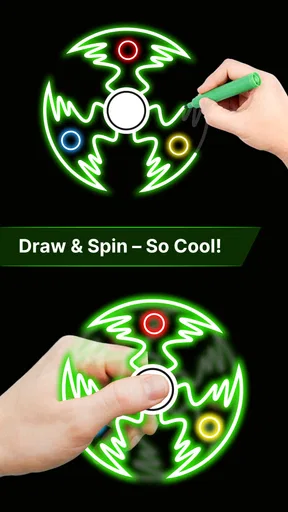
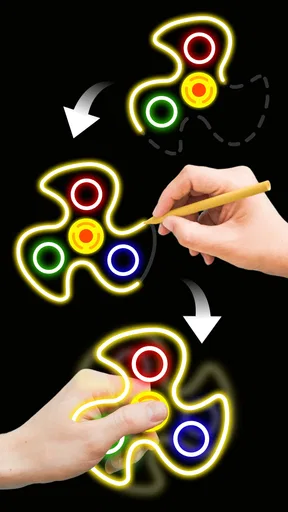
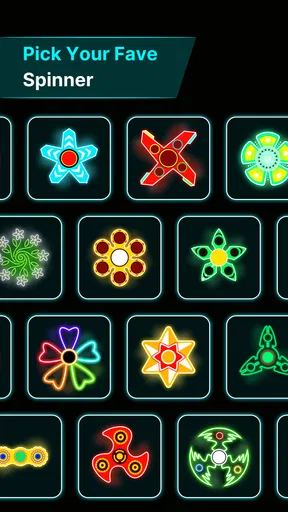
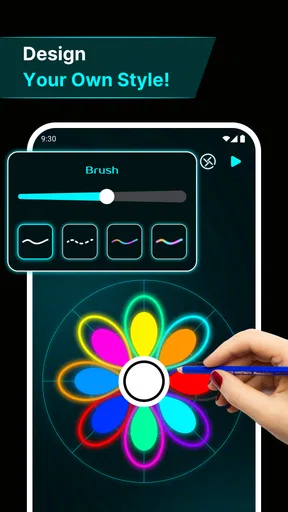
 Analysis by AppCompare
Finger Spinner: Glow Art Draw is one of those apps that you didn't know you needed until you tried it. Seriously, who knew spinning could be this mesmerizing? Let me take you through my experience with this delightful app.
A playful kind of digital drawing
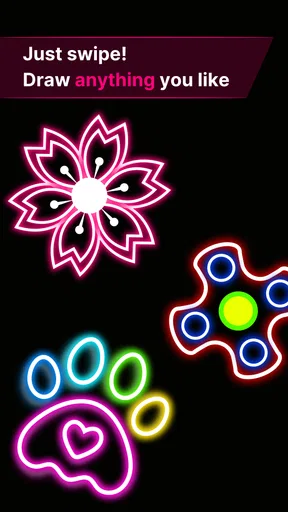
This is an art and design app built around the simple pleasure of making glowing patterns with a finger. That makes it different from a conventional drawing tool: rather than carefully sketching a subject or building a detailed illustration, I use the spinner-like interaction to create motion and color. The appeal is immediate and low-pressure. There is no need to arrive with an idea for a finished picture; a few gestures are enough to see whether the colors and shapes take me somewhere interesting.
I would describe its best use as a short creative break rather than a replacement for a full art studio. If I have a spare moment between tasks, I can open it, experiment with a pattern, and enjoy the visual result without setting up a canvas or planning a project. Someone who wants layers, precise brushwork, or a workflow for producing polished artwork will probably be happier with a dedicated drawing app. Here, the pleasure is in the act of spinning and watching a design emerge.
The difference matters when choosing what to install. Traditional digital sketchbooks reward control and patience; simple fidget apps tend to focus on repetitive motion. This one sits between those familiar options, adding a creative visual payoff to the fidget-like interaction. I find that combination more engaging than a plain spinner when I want something to look at, but less suitable when I need to draw a particular object accurately.
Getting Started with the Spin
When I first opened Finger Spinner: Glow Art Draw, I was immediately drawn in by the vibrant colors and sleek design. The app's interface is super user-friendly, which means you’re spending less time figuring things out and more time spinning! Just a few taps and I was already creating my first glowing masterpiece.
Features that Light Up Your Experience
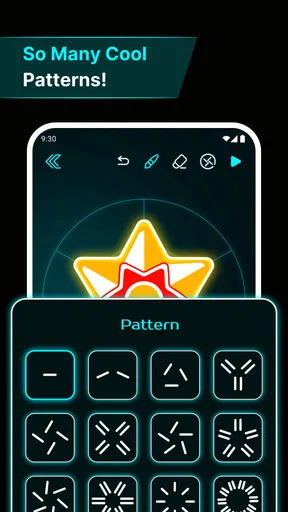
One of the coolest features is the array of glowing colors available. You can choose from a spectrum of neon shades to customize your spinner, which makes every creation feel unique. The app also offers a variety of patterns and designs to spin, so you never run out of ideas. It’s kind of like having a digital fidget spinner that’s also a piece of art.
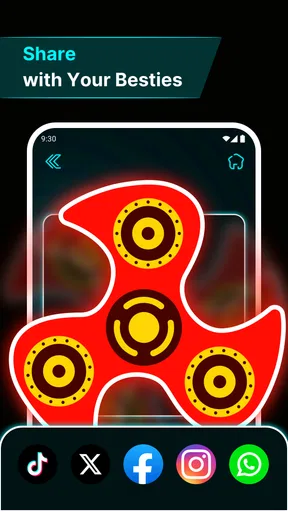
Another feature I found intriguing is the ability to share your creations with friends. Imagine showing off your spinning skills and seeing what others have come up with. It’s a fun way to connect and maybe even get a little competitive. Plus, who doesn't like a bit of friendly competition?
Worth Reading Before You Choose

EA SPORTS FC Mobile 26 Is a Bigger Football Game, but It Takes Time

Flipboard Shows What News Apps Must Do Beyond the Feed

Switching to Android Auto Means Rethinking Your Driving Routine

Google Calendar Makes a Crowded Week Easier to Manage

Ludo King Makes the Most of the Minutes Between Plans

Baby Panda World Brings Quick Play to Modern Phones, but Its Game Library Feels Busy
Making the controls work for you
The easiest way to get more from a spinner-based drawing experience is to treat each attempt as an experiment, not as a test of drawing skill. I like to begin with one color and a simple pattern, then change only one element on the next try. That makes it easier to notice what the visual change actually does, and it avoids the feeling that I have to master every choice before I can enjoy the result.
A useful trade-off is that a gesture-led interface can feel inviting precisely because it asks less of me than a detailed art program. The same simplicity means it may not offer the precision that some users expect from a drawing app. If I want a symmetrical, controlled composition, I would look for a tool designed for deliberate editing. If I want to see what an uncomplicated movement produces, this app's approach makes more sense.
When showing a creation to someone else, I would think about what makes it interesting to look at rather than trying to make every result elaborate. A clear color contrast or a pattern that reads well at a glance can be more satisfying than a busy design. That is a practical way to approach the sharing element: make something you enjoy first, then decide whether it is worth sending along, rather than turning every session into a performance.
Why You’ll Love It
If you’re like me and love apps that blend relaxation with creativity, this one’s a winner. The app is not just about spinning; it’s about creating something beautiful in the process. It’s surprisingly relaxing to watch the colors blend and patterns emerge as you spin. A few minutes with the app, and I felt like I'd just had a mini meditation session.
What makes it even better is the simplicity of the controls. You don’t need to be a tech wizard to enjoy all it has to offer. Just swipe and spin, and let the magic happen. It’s a great way to unwind after a long day, or even while waiting in line somewhere.
Readability and ease of navigation
The visual style is part of the experience, not just decoration. Bright glowing colors can make the result feel lively and easy to notice, while the uncomplicated interaction helps keep the focus on creating rather than learning a complicated tool. In my view, that is a good fit for a casual app: I can explore without needing to understand a long sequence of drawing commands first.
At the same time, a vivid screen is not automatically comfortable for everyone. Neon effects and repeated visual movement may be tiring for someone who prefers subdued colors, lower stimulation, or still images. I would approach it in short sessions if intense color or animation tends to bother me, and stop if the display becomes uncomfortable. The app’s playful look is a strength for users who enjoy glowing art, but it is also a reason it will not suit every visual preference.
For a first visit, I would keep the goal modest: make one design, learn how the main interaction feels, and only then explore the color and pattern choices. That reduces the number of decisions competing for attention. It is also a helpful way to tell whether the basic motion is comfortable before spending more time experimenting. The interface may be easy to approach, but personal comfort still depends on how a person responds to movement and bright visual effects.
Motor and sensory considerations
The finger-led nature of the experience is straightforward, but it still asks the user to interact through touch. Someone with limited dexterity, tremor, fatigue, or difficulty making repeated gestures may find that the central action takes more effort than it does for me. A short trial is the best way to judge that personally. I would not assume that an interaction is accessible for every hand simply because it is simple to describe.
There is a useful distinction between a brief fidget and a long drawing session. The quick, casual format may be easier to fit around moments when a person can comfortably use a touchscreen, while repeated movements could become tiring if continued for too long. I would pause between attempts and avoid pushing through discomfort. This is especially relevant for anyone who wants an app for frequent, extended use rather than occasional creative breaks.
Sensory preferences deserve the same care. The glow and motion are the point of the app, so they may be enjoyable for someone who likes lively visuals but distracting for someone sensitive to brightness or movement. It is not the first choice I would make for a quiet, low-stimulation activity. If I am already dealing with visual fatigue or need a calm screen, a static sketchpad or a non-visual fidget alternative would be a better match.
Situations where it fits—and where it doesn’t
A realistic use for me is a brief pause at home after finishing a chore: I open the app, make a few patterns, and put the phone away when I am ready to return to what I was doing. It can also suit a waiting period when I want a small creative distraction and do not need to produce anything useful. The benefit is that the activity has a visible result, which makes it feel more expressive than simply tapping through a repetitive animation.
That same scenario has limits. If I am in a place where looking at a bright screen would bother people nearby, or where I need to pay attention to what is happening around me, I would choose something less absorbing. A spinner drawing session is a leisure activity, not a tool for staying alert or completing a practical task. I also would not rely on it as a substitute for a serious focus or mindfulness routine; it may feel calming, but the response is personal and the app is primarily a playful creative experience.
It could be a fun option to explore with a friend or family member who enjoys visual experimentation, especially if the aim is to compare designs casually rather than compete seriously. The shared-creation idea gives the result a social angle, but people should be comfortable with the touch interaction and bright presentation. For a group with different visual or motor needs, I would let each person decide whether to take part instead of treating the same activity as suitable for everyone.
Who should choose a different tool
I would skip this if my main goal were to learn drawing fundamentals, make a carefully planned illustration, or edit fine details. Those tasks call for tools that give more direct control over lines and composition. I would also pass if I wanted an understated fidget app with little visual movement, because the glowing-art aspect is central to what makes this one distinctive.
It is also not an ideal choice for someone who dislikes touch-driven interactions or finds repeated swiping uncomfortable. A physical fidget object, a simple puzzle, or a more static creative activity may be easier to use, depending on the person and setting. The best alternative is not necessarily another app: sometimes the right answer is a tool that demands less screen attention or less hand movement.
For people who do enjoy the format, I would recommend thinking of it as a small creative toy rather than expecting a large library of professional features. That expectation keeps the experience in perspective. The app can provide an enjoyable visual break, but it should not be judged by the standards of a full drawing suite or a comprehensive relaxation program.
Practical details and everyday fit
Fusion Flow Tech is the developer, and the app is free, so it is easy to consider as a casual download without treating it as a major investment. Its age rating is Everyone, which makes the intended audience broad, though that does not mean the bright effects or repeated touch gestures will suit every individual. I would still make the choice based on the person’s comfort and interests, particularly if the app is being considered for a child or someone who benefits from a quieter interface.
It has an average rating of 4.6 from around 40,000 ratings, and it has passed over one million installs. Those figures suggest that plenty of people have found the basic idea appealing, but they cannot tell me whether a particular person will enjoy the motion, color, or controls. I would use them as context rather than as a promise of a perfect fit.
The release date is July 6, 2025, and the current version is 1.1.2. It requires Android 7.0 or later, so I would check that requirement before trying to install it on an older Android device. For someone choosing between devices or platforms, that compatibility point matters more than the app’s broad appeal: a creative break is only useful if it works on the phone they actually use.
One practical question is whether the app is better for a quick diversion or for a longer session. I see it primarily as the former. The repeated visual interaction can be absorbing, but the simple premise is most enjoyable when I let a session stay light. If I find myself wanting more control, a more involved drawing workflow, or a less animated screen, that is a sign to switch to a different kind of tool rather than trying to make this one serve every purpose.
Final Thoughts
Overall, Finger Spinner: Glow Art Draw is a delightful escape into a world of color and creativity. Whether you’re looking for a new way to relax or just want to try something different, this app has you covered. It’s amazing how something so simple can be so captivating. Give it a spin and see for yourself!
An inclusive verdict
My recommendation depends on what someone wants from a creative app. If bright visual patterns, simple touch interaction, and a low-pressure way to make something are appealing, I can see this being an enjoyable addition to a phone. It asks for curiosity rather than artistic experience, and the short-session format makes it easy to try without committing to a large project.
If comfort with movement, vivid colors, or repeated finger gestures is uncertain, I would test it briefly and trust that response. No broad age rating or popular reception can replace an individual check of whether the experience feels good to use. For people who need precise drawing tools, reduced stimulation, or a hands-free activity, a different option is likely to be more useful.
That balance is what I appreciate most: it offers a distinctive little mix of fidgeting and visual creativity, while remaining a specific kind of experience rather than a solution for every need. I would recommend it to a friend who enjoys glowing designs and wants a playful screen break, with the honest caveat that its motion and touch-first approach are not for everyone.
Pros
- Unique glow art drawing feature.
- Intuitive and user-friendly interface.
- Wide variety of color options.
- Supports creativity and relaxation.
- Regular updates with new features.
Cons
- Advertisements can be intrusive.
- Limited offline functionality.
- Some features require in-app purchases.
- Occasional app crashes reported.
- Not suitable for professional artists.
FAQs for Finger Spinner: Glow Art Draw
What is Finger Spinner: Glow Art Draw?
Finger Spinner: Glow Art Draw is an engaging mobile app that combines the fun of virtual finger spinning with creative drawing. Users can create stunning glow art designs while spinning a virtual fidget spinner. It's perfect for those who enjoy artistic expression and want a relaxing, creative pastime.
Is Finger Spinner: Glow Art Draw free to download and use?
Yes, Finger Spinner: Glow Art Draw is free to download on both Android and iOS platforms. However, the app may offer in-app purchases for additional features or content. These purchases are optional and enhance the user experience by providing new designs and tools.
What are the main features of Finger Spinner: Glow Art Draw?
The app offers a variety of features including customizable glow art tools, multiple spinner designs, and a user-friendly interface. Users can create and save their designs, experiment with different colors and patterns, and share their creations with friends on social media directly from the app.
Does Finger Spinner: Glow Art Draw require an internet connection?
No, Finger Spinner: Glow Art Draw can be used offline, which makes it ideal for users who want to enjoy the app without an internet connection. However, an internet connection is necessary for downloading updates and sharing creations online.
Is Finger Spinner: Glow Art Draw suitable for all age groups?
Yes, the app is designed to be family-friendly and is suitable for users of all ages. Its simple controls and engaging visuals make it accessible for children, while its creative potential can appeal to older users who enjoy artistic activities and stress relief.


